Interface Overview
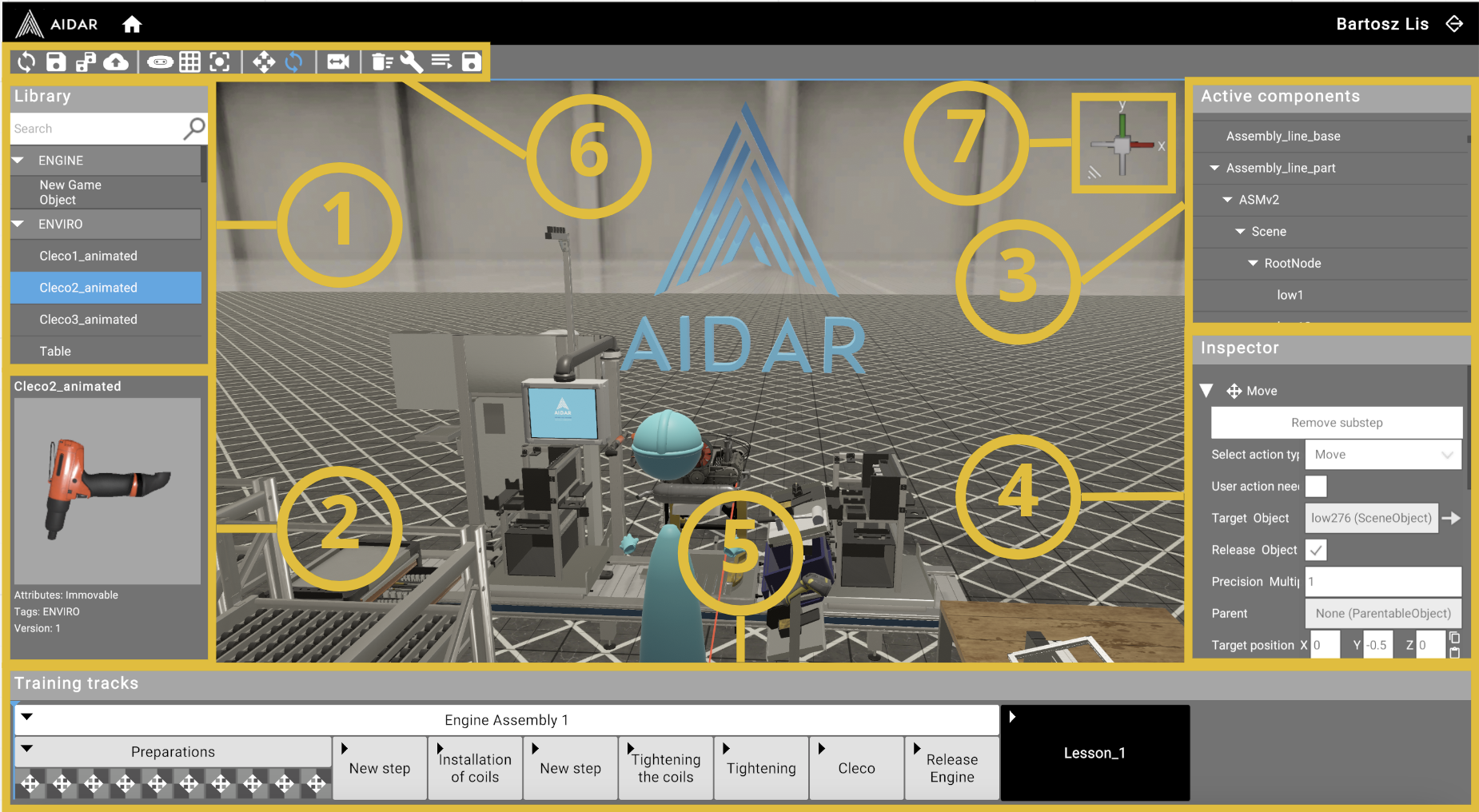
1. Library
The library contains resources that you have added through the Web App and assigned to the selected training. Select a resource and double left-click to add it to the scene.
2. Preview 3D objects
Preview of the resource selected in the library. Left-click and drag a 3D object to rotate it in any direction. This way you can see it from all sides.
3. Active components
The list contains all the components that have been placed on the scene from the library (1). Left-click on an object in this list to select it and view its properties in the Inspector (4).
Double left-click on an item in the list to center the camera on the selected object.
4. Inspector
The Inspector displays properties for the selected scene object or the currently selected substep.
When a scene object is selected, the Inspector shows:
- Position and Rotation - the object's local transform
- Parent - assign a parent object
- Default Animation - select and configure animations (if available)
- Image Scale - scale factor for image planes
- Override Shaders - apply custom shader effects
- Lua Scripts - event-based scripts (On Init, On Touch, On Grab, On Release, On Collision, On Trigger, On Click)
- Remove - delete the object from the scene
When a substep is selected, the Inspector shows the substep type and its configurable parameters.
5. Training tracks
The place where you create scene logic - lessons, steps, and substeps.
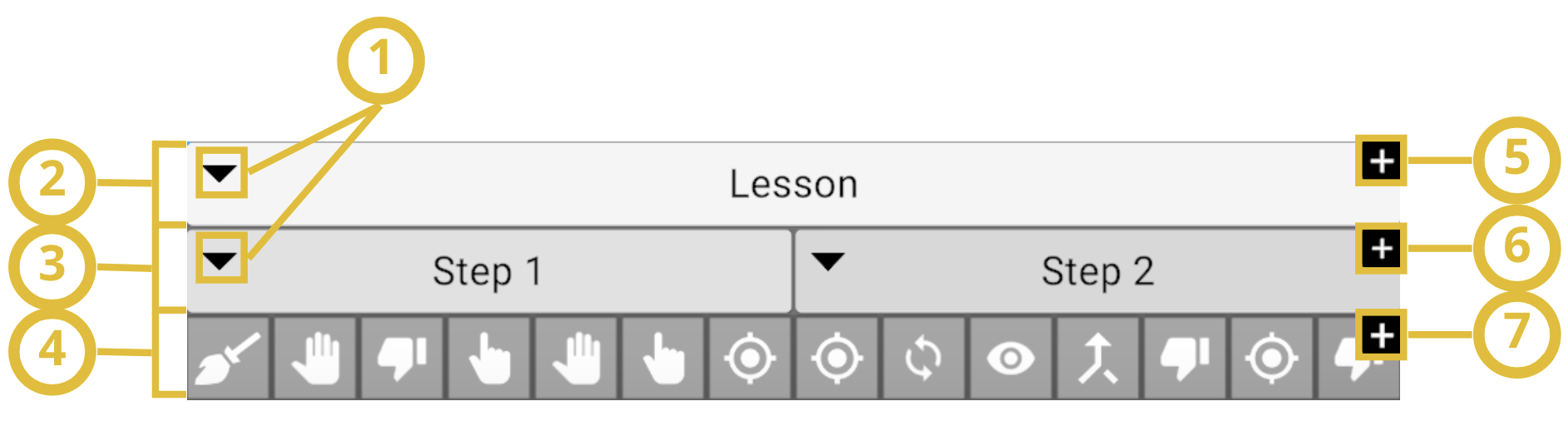
(1) Expand Lesson/Step content
(2) Lessons
(3) Steps
(4) Substeps
(5) Add new Lesson
(6) Add new Step
(7) Add new Substep
6. Toolbar
| Icon | Function |
|---|---|
 |
Save all changes locally. |
 |
Save and sync to the server. |
 |
Publish the lesson. |
 |
Preview lesson in VR. |
 |
Turn on/off the floor grid. |
 |
Enable position mode - move objects along axes. Check details |
 |
Enable rotation mode - rotate objects around axes. Check details |
 |
Change the camera movement speed. |
 |
Delete selected object. |
7. Viewport gizmo
For changing view modes and for rotating the view.
Keyboard shortcuts
| Shortcut | Action |
|---|---|
| W / S | Move camera forward / backward |
| A / D | Move camera left / right |
| Q / E | Move camera down / up |
| Right-click + drag | Rotate camera view |
| Scroll wheel | Zoom in / out |
| Left Shift | Hold to increase camera speed |
| R | Switch to position mode (move objects) |
| T | Switch to rotation mode (rotate objects) |
| Delete | Delete selected object |