Training Management
Creating a training draft
You can create a new training draft in the Web App under the Training tab.
-
Log in and go to the Training tab.
-
Select Add Training.
The training creation form will appear on the right.
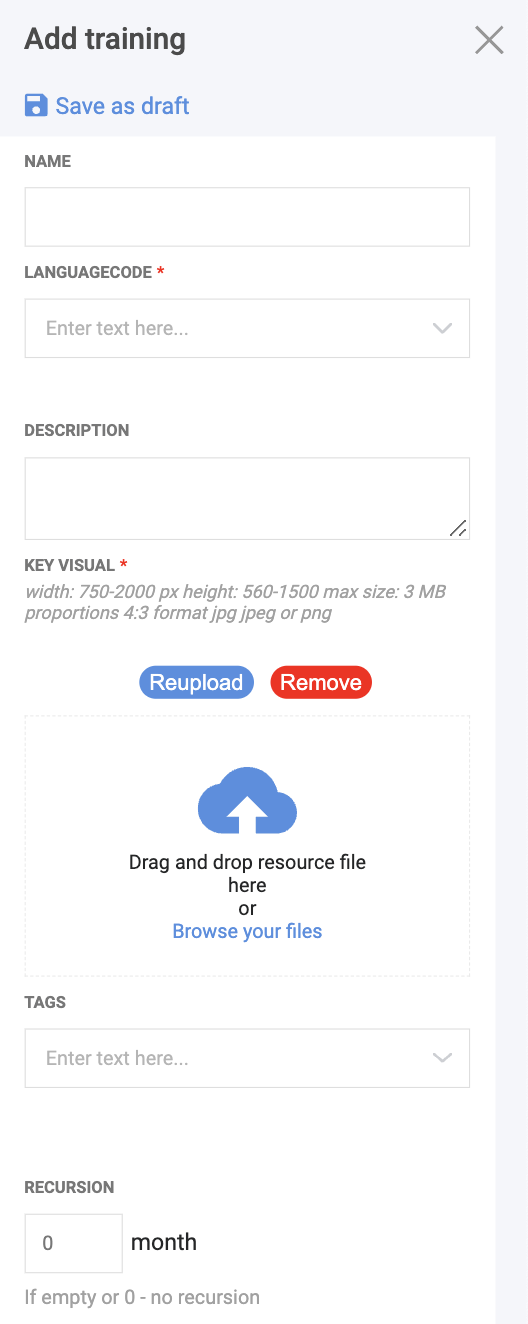
Name - the name of the training.
Language - the primary language. After creating a training, you can add more languages. Check details
Description - description visible in the Web App, Player, and Editor.
Key visual - a cover image for the training. It will be shown in training lists across all applications. Image requirements: 750x560px, up to 100 KB.
Tags - categorize trainings for quick search and filtering.
-
Fill in the data and select Save as draft.
Note
Only users with the Admin or Editor role can create and view drafts. After creating a lesson in the Editor (check steps), you must publish the training to make it available to users:
-
Go to the Training tab and select the eye icon next to the training.
-
Select Publish to make the training visible to assigned users.
Training settings
Trainings support additional configuration through settings:
| Setting | Description |
|---|---|
| Passthrough | Enable Insight Passthrough on Meta Quest - virtual objects appear alongside the real environment. |
| Meetings Module | Enable/disable multiuser meeting functionality for this training. |
Managing lessons
Each training contains one or more lessons. From the training detail view you can:
- Add lesson - create a new lesson draft within the training
- Reorder lessons - change the order in which lessons appear
- Delete lesson - remove a lesson from the training
- Set key visual - assign a cover image to individual lessons
Environment resources
Each lesson can optionally use an environment resource - a 3D model (.glb) that serves as the room or background environment. If no environment is set on the lesson level, the training-level environment is used as a default.
Publishing
After editing lessons in the Editor and saving to the server:
- Go to the Training tab in the Web App.
- Open the training details (eye icon).
- Click Publish.
Published trainings become available to all assigned users in the Player app. Users will see a download notification for new or updated content.
Tip
You can unpublish a training at any time to hide it from users while making changes.