Starting a lesson
If you already have login credentials and the Aidar.Skills Player app installed, the following instructions will guide you step-by-step through the process of starting a lesson.
Tip
If you haven't set up your device, start with Installation.
Standalone Quest
1. Launch the app
Put on your Quest headset and launch the Aidar.Skills Player from the app library.
2. Select a server
On the login screen, select the server to connect to:
- Console - production server (default)
- Local - custom server via IP address (for development or on-premises deployments)
- Offline - no server connection, uses locally cached lessons
Note
Offline mode is only available after you have downloaded lessons at least once while connected.
3. Log in
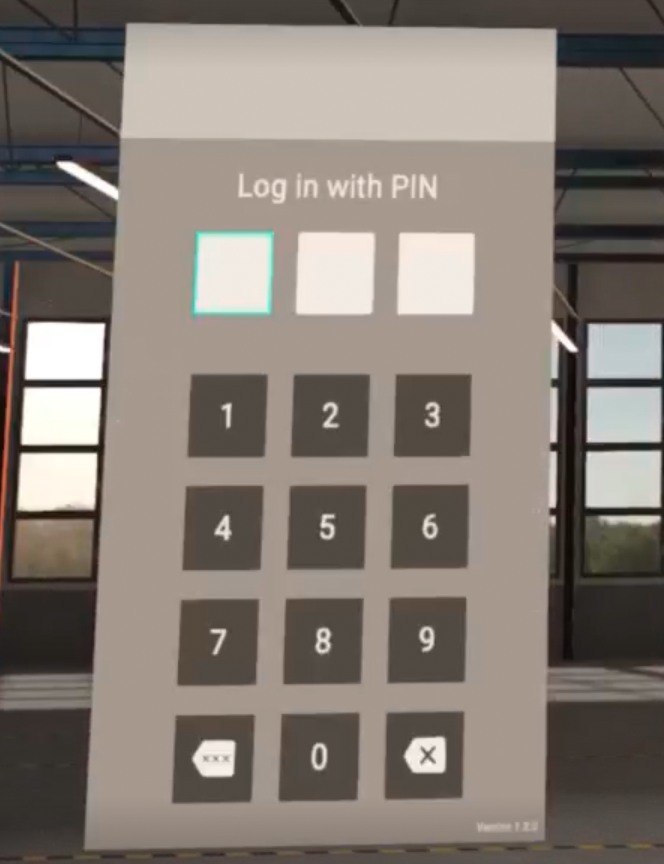
Enter your 3-digit PIN using the VR keypad.
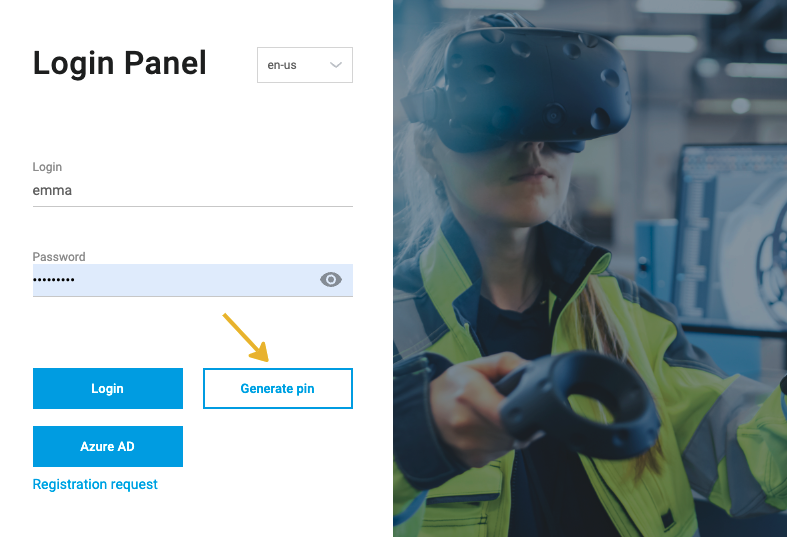
To generate a PIN, go to the Web App, enter your login and password and click Generate PIN.
Note
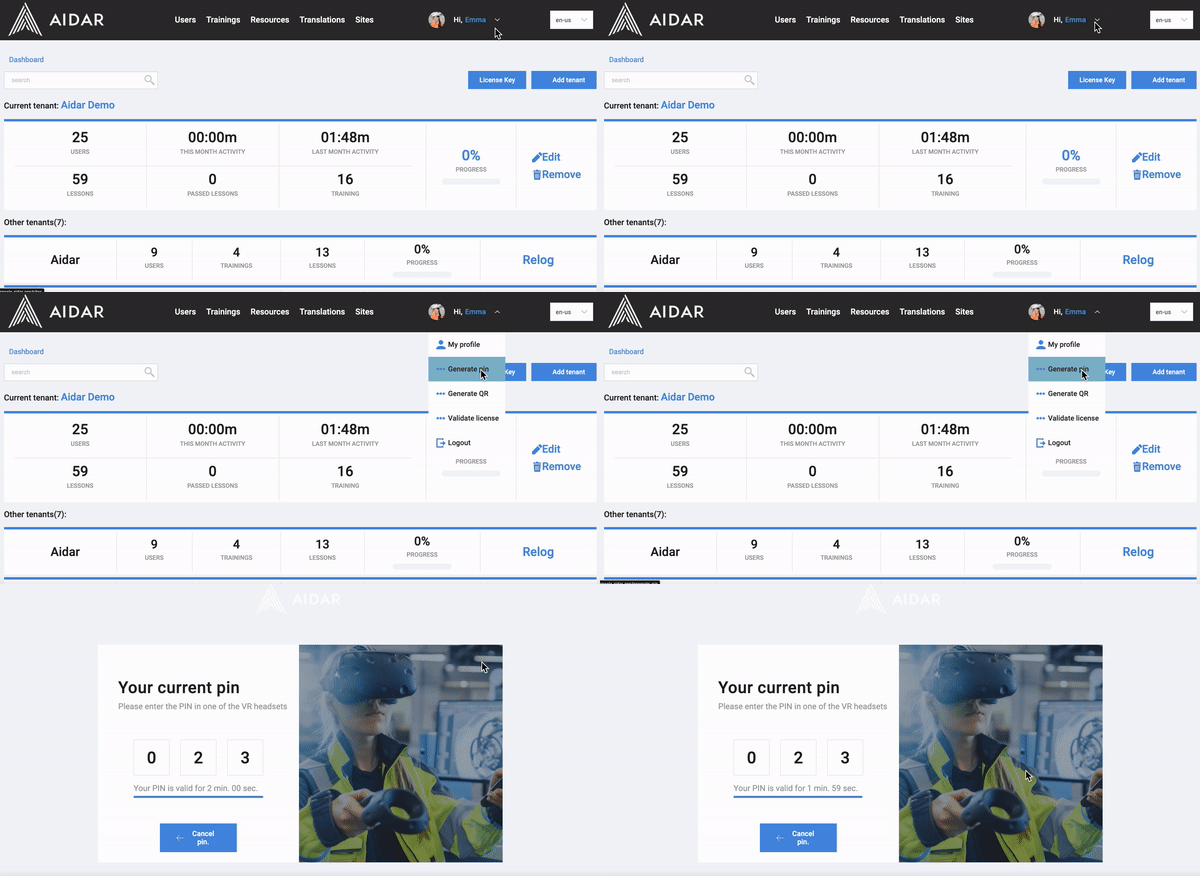
You can also generate a PIN if you are already logged into the Web App:
-
Click on your profile icon in the upper right corner.
-
Click on Generate PIN. The 3-digit PIN will show up.
4. Open a training
You will see a list of trainings. Open the lesson list (1).
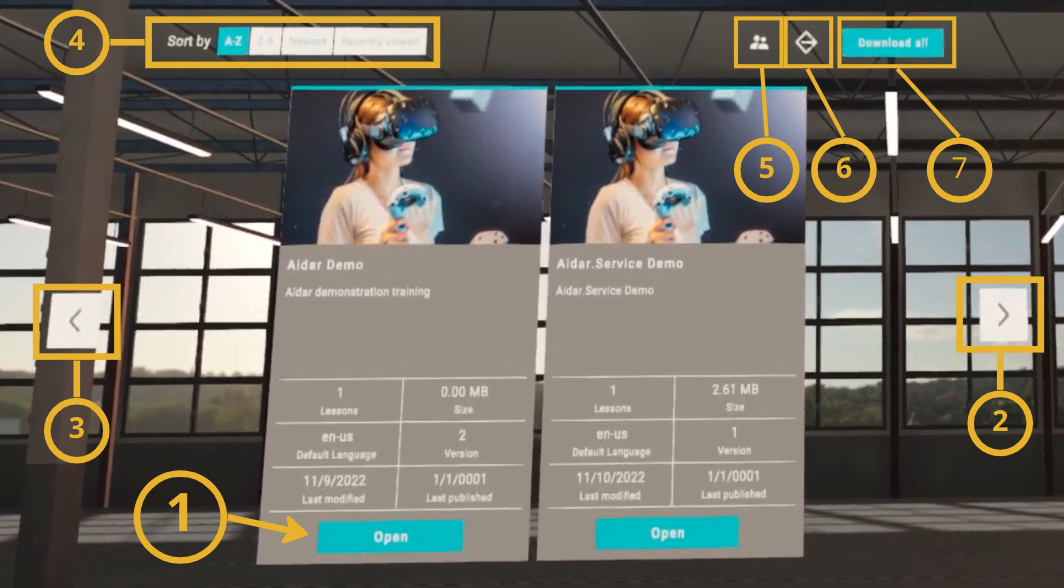
(1) Open lessons list
(2) Next page
(3) Previous page
(4) Sort list
(5) Join a meeting
(6) Log out
(7) Download all the lessons
5. Open a lesson
Select the Open (1) button of the lesson you want to start.
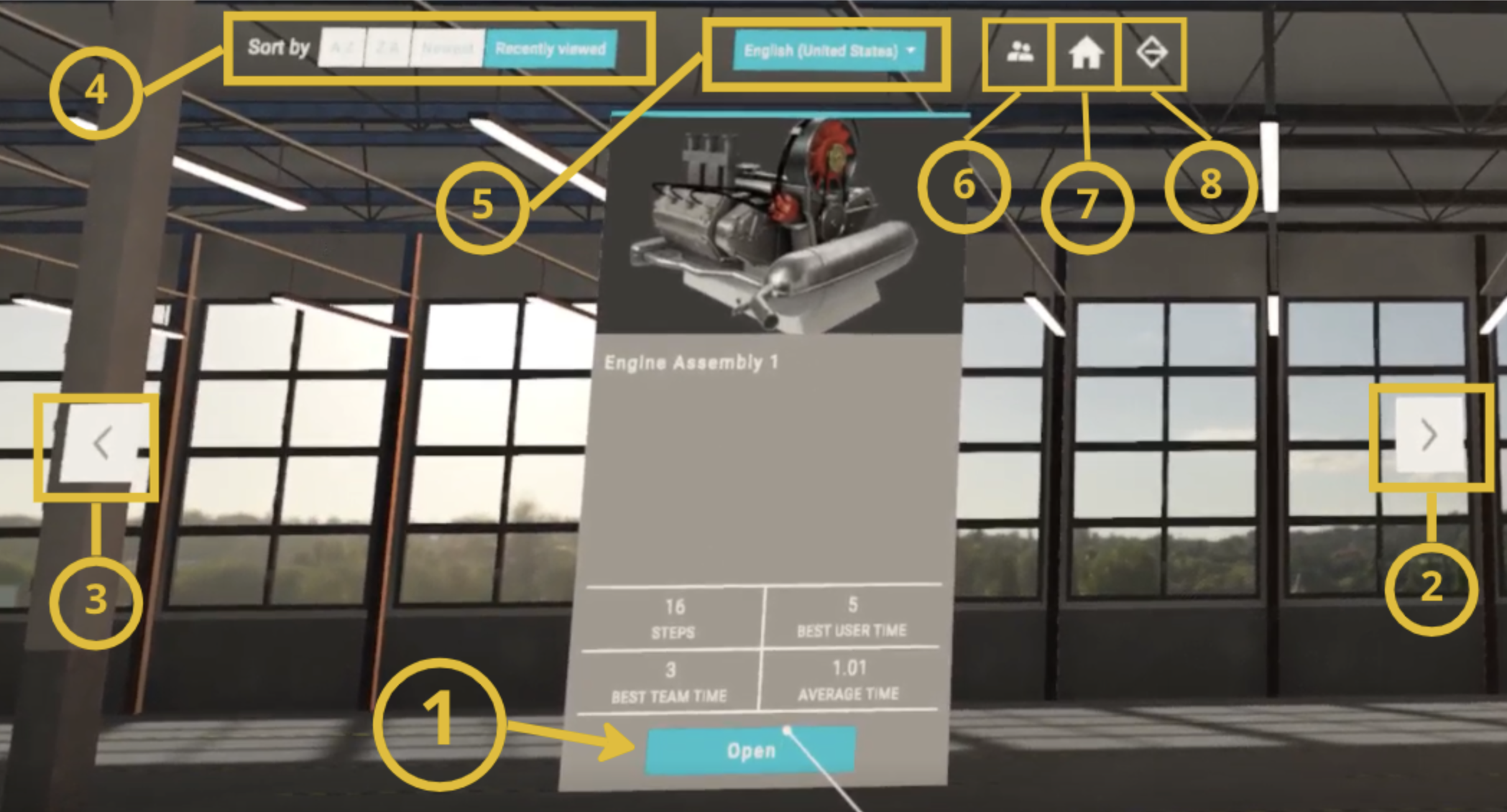
(1) Open a lesson
(2) Next page
(3) Previous page
(4) Sort list
(5) Change lesson language
(6) Join a meeting
(7) Go back to training list
(8) Log out
Note
If you are launching a lesson for the first time you will see a Download button. Select it to start downloading the lesson. When the download is complete, the button will change to Open.
6. Follow the instructions
Look at your left wrist. You will see a watch on which the lesson time is counted down and instructions for the current step.
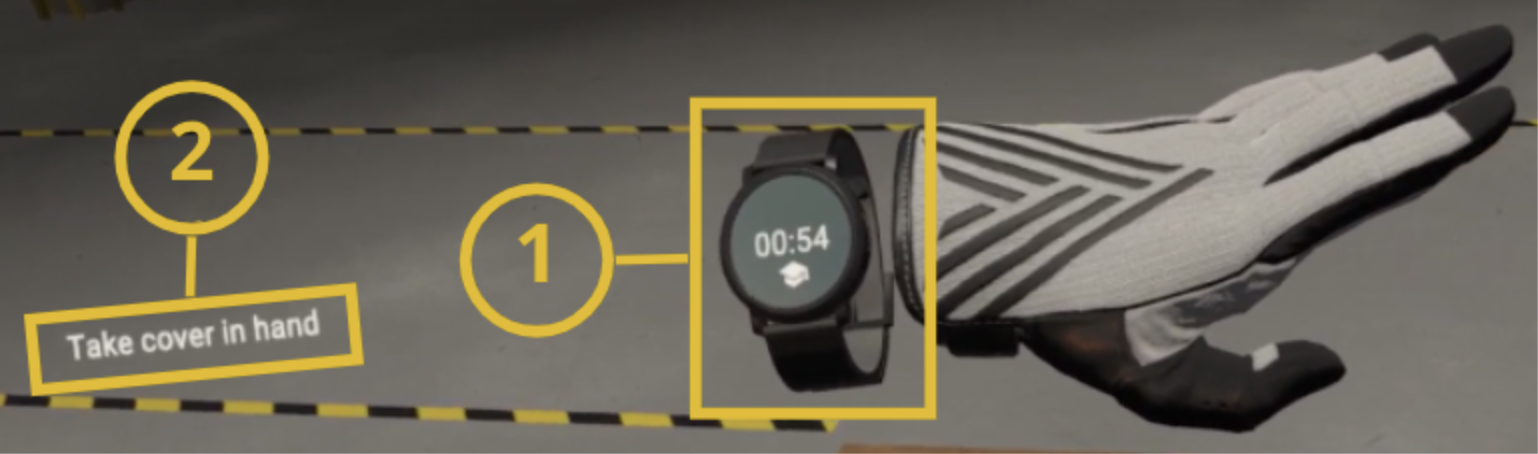
(1) Wristwatch
(2) Text instructions
The watch also allows you to change settings, start a meeting, enable test mode and more. To learn more, check out the section Wristwatch - lesson settings.
PC VR
1. Connect your VR headset to PC
You can connect the headset to the PC in two ways:
-
(Recommended) Plug it in with a USB-C cable.
-
Connect to PC via Wi-Fi (Quest Air Link or similar).
2. Run applications on your PC
Run the appropriate software depending on the manufacturer of the headset (Meta Quest Link or HTC Dashboard) and Steam VR if it does not start automatically.
Tip
Steam VR can be set to start automatically. Go to Steam VR > Settings > Startup / Shutdown > Choose Startup Overlay Apps > switch to On and restart Steam VR.

3. Run Aidar.Skills Player on PC
The application will load on your VR headset. Follow the same login steps as described in the Standalone Quest section above (steps 2-6).